
What we offer Tumblr partners
The needs of a specific partner will inform our engagement, but generally we can provide:
- Custom Tumblr theme development.
- Account setup, onboarding/tutorial sessions, and continued consulting on how to engage with an audience on Tumblr.
- A TAM can work in collaboration with Tumblr on a concierge onboarding and tutorials. For users that can be categorized as entertainment, music, or social good ███████████████, reach out to the Tumblr Marketing team (███████████████). Reach out to Tumblr Support for everything else.
- TAMs can draw from external facing documentation and compile specific instructions for the partner or assist the partner directly by following some of the guidance posted:
- House ads and/or Blaze credits to promote the partners’s posts.
Incoming Leads & Getting Started
Outreach Form
Leads for Tumblr projects come to Special Projects the same way WordPress leads do—through the Outreach form here:
███████████████
There are fields on the form for including the Tumblr account and URL for the person or organization that will be the focus of the project. If they don’t have one yet it’s fine to leave these fields blank. There are options for selecting a “product” on the form as well. It’s fine to choose multiples if a lead needs more than one.
Filling out the outreach form will automatically create a new post on our internal P2, and that post will ping the appropriate group for review. Like other referrals, the lead will be reviewed. If we proceed with it, a project post will be created on ███████████████ along with a new project in Linear. The project P2 and Linear project will be linked in a comment on the outreach post for reference.
Zendesk
All members of Special Projects have access to the Tumblr Concierge Inbox in Zendesk. This inbox works similarly to the WordPress Concierge inbox, but sends from ███████████████. Members of the Tumblr Partnerships team (the source of many of our referrals for Tumblr-specific projects) also have access to and use this inbox for communication.
The majority of incoming messages should be automatically routed to specific partnerships team members through the use of specific tags and custom triggers setup to auto-assign tickets based on them.
Project Life Cycle
Tumblr projects should follow our normal project life cycle: Project Life Cycle – Broad Overview.
Although some phases might be scaled down—determined on a project-by-project basis—some steps should not be skipped, like Design reviews and QA.
We should also do our regular admin tasks, like Project P2s, Linear Projects, Launch posts, etc.
Determining Project Approach
The Tumblr projects we’ve had so far have fallen into two categories. Whilst our original understanding of how partners used Tumblr allowed for the potential of not needing a developer involved, this turned out not to be the case due to Tumblr themes having a low amount of theme options available and most CSS work requiring direct theme modification.
Category 1: Existing themes
The partners we have worked with so far who only wanted a re-vamped appearance for themselves have chosen off-the-shelf Tumblr themes and then required small amounts of customization. When we do this we need to be sure to keep our customizations safe in a Github repo to avoid loss of changes on a theme update or similar event.
Typically these types of projects only have a day or two worth of work. However, since this type of project may not have a fixed design document, expect some extra time from partner requested changes.
Category 2: Publicly released themes
The partners we have worked with so far who have fallen into this category have been musicians releasing a new album. Typically when a musician who values a Tumblr presence does this, they request a new theme that’s also publicly released.
Expect around a week for build time on a project like this, and then up to another week for QA, content testing, Tumblr support team testing, and release processes.
Read more about his and details on best practices in the Developer Handbook:
███████████████
Tumblr Theme Design
Firstly: keep in mind there’s two ways to view a Tumblr.
1 – via the Blog Network:
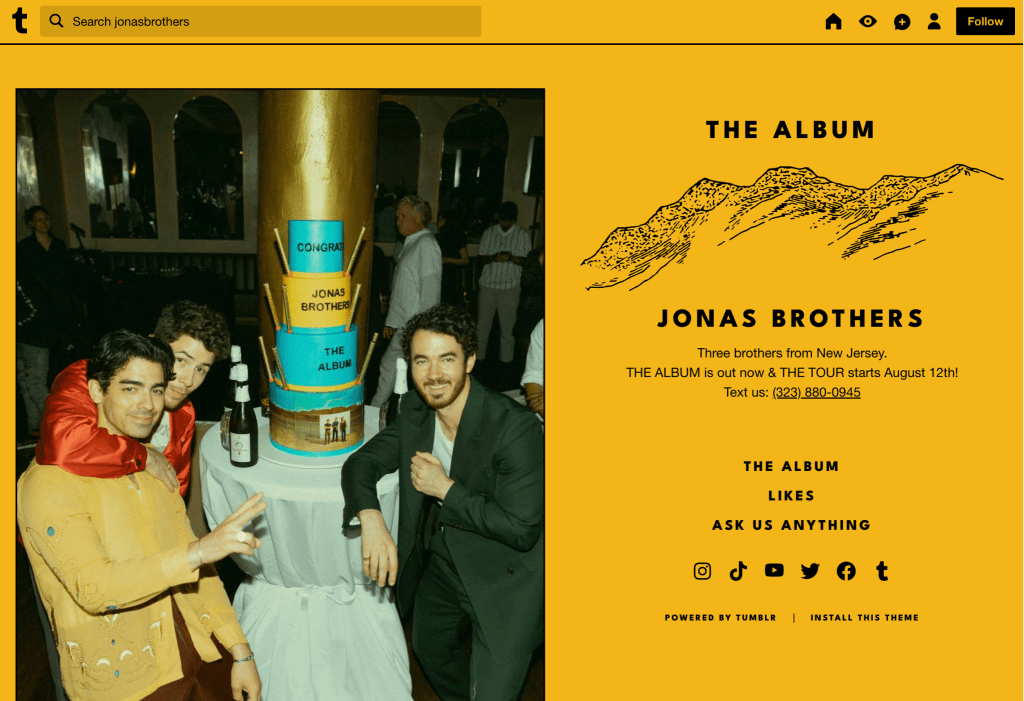
This is the Tumblr address where you’ll see the site’s theme, accessed via subdomains like jonasbrothers.tumblr.com or even custom domains. This is what you’ll be designing! We have full control over the code.
2 – via Bluespace:
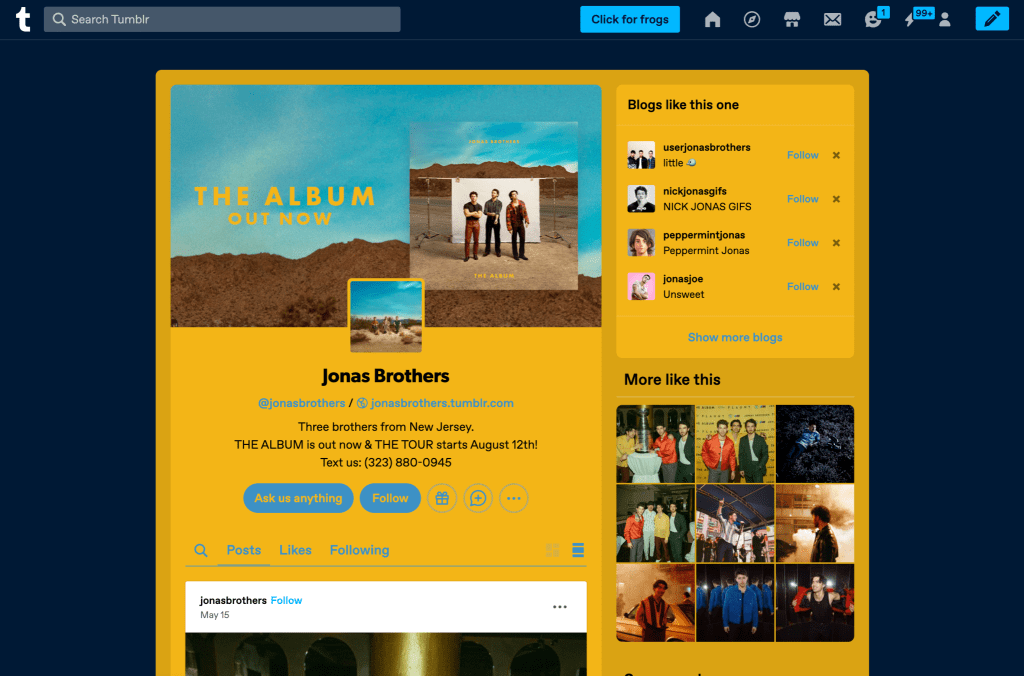
This is the site that loads in the blue Tumblr platform, and is accessed via URL subdirectories like tumblr.com/jonasbrothers.
You don’t have control over layout, but colours, fonts, description, and links are customizable. These settings can also be used in the theme (if desired), and are usually controlled by the partner, but we can offer suggestions.
Starter Themes
The Official Tumblr Theme is an easy place to start: https://www.tumblr.com/theme/37310
This theme even includes a few layout options (single column, masonry), and utilizes a lot of a Tumblr’s Bluespace settings (see Default Blog Setting Options section, below) in its design.
███████████████
For more inspiration, visit the theme garden: https://www.tumblr.com/themes. You could also start with one of these themes, as long as we’re not releasing this new theme back into the theme garden as part of a partner collaboration. Avoid premium themes.
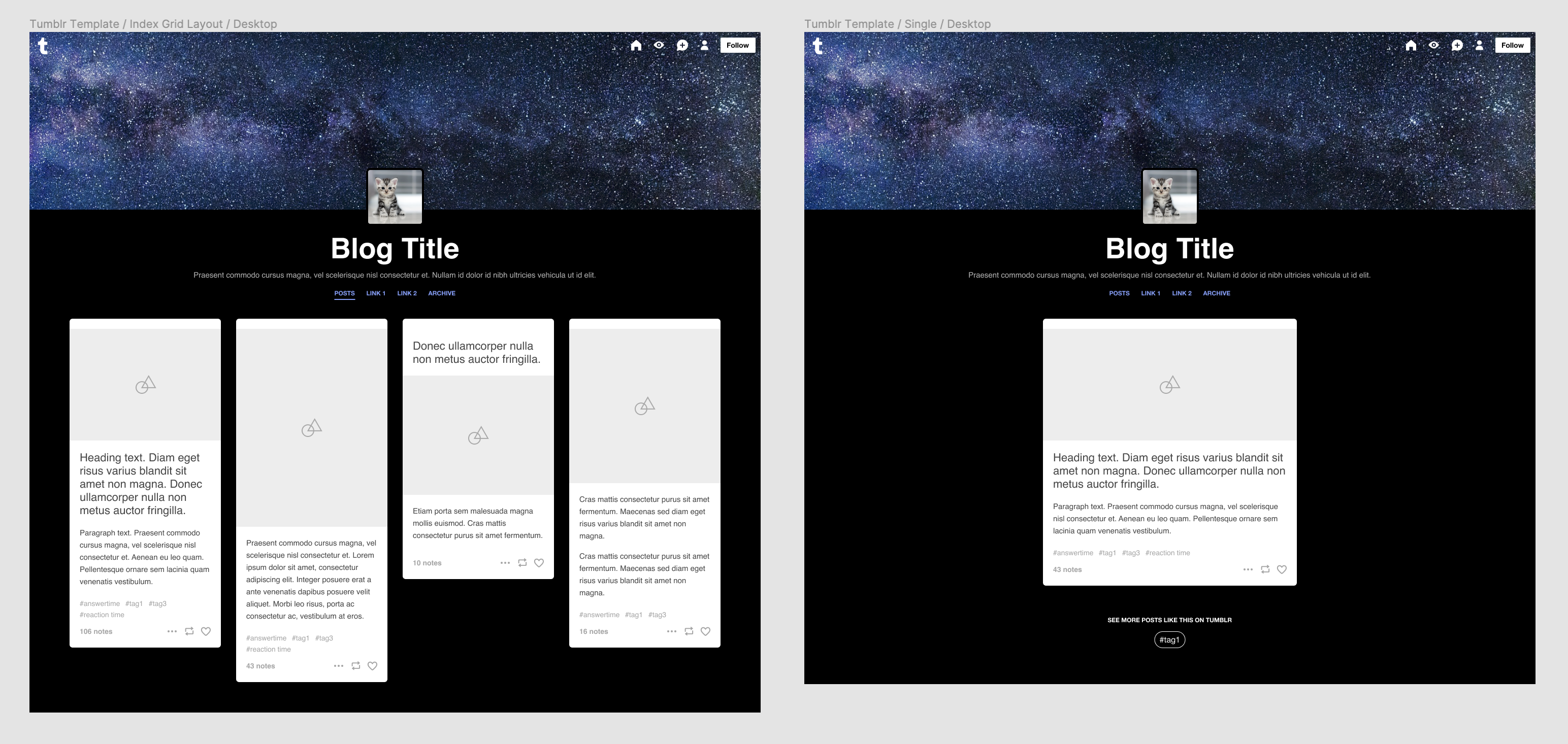
Theme Page Templates
Tumblr only has a few default views:
- Index page of posts — this can be paginated or infinite load
- Single post
- Tag archive — generally the index + a tag title (blogs only have a ‘tags’ taxonomy, not categories)
In the Official Tumblr Theme, you can see there really isn’t much difference between these views, but you can design more unique layouts if we are building a custom theme.
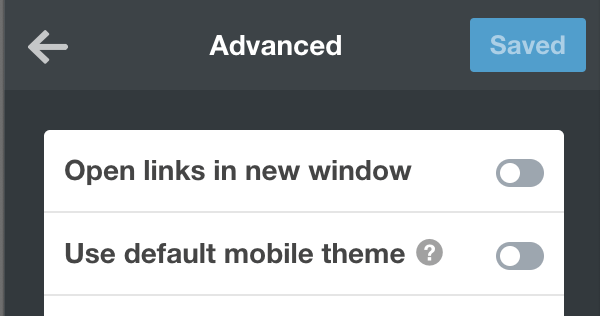
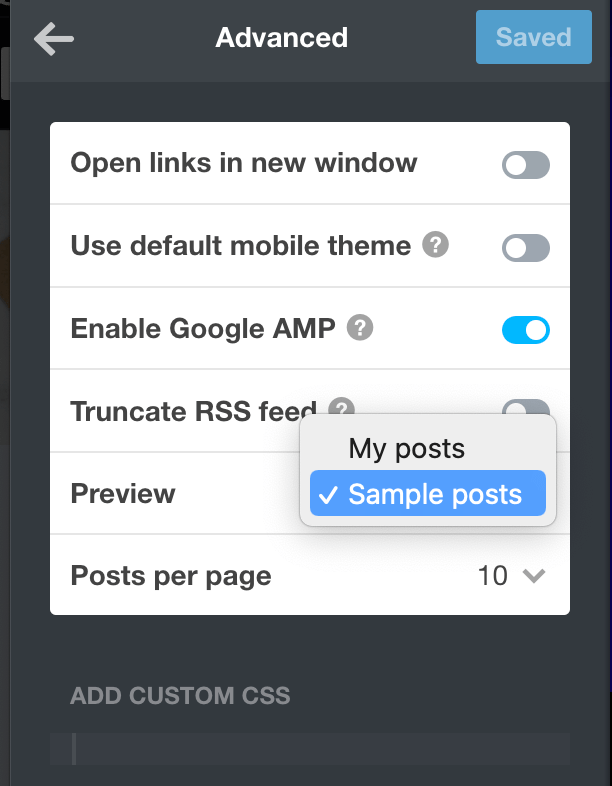
Mobile: keep in mind there’s also a setting that will load the mobile version of your site in the default generic Tumblr theme, if you reaaally don’t want to design for mobile. This setting is under Edit theme > Advanced options.
Header Bar
You want to include the default Tumblr bar in your design (this is included in our Figma template file). We can customize the colors to match the theme, too.

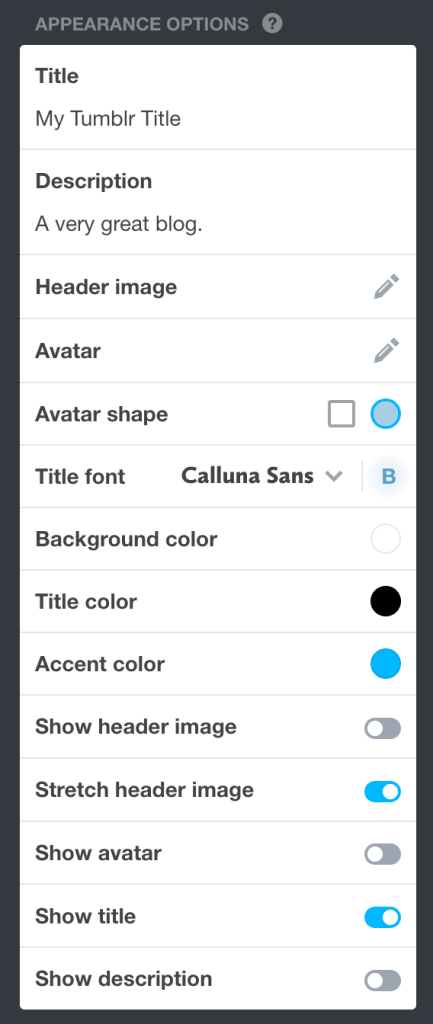
Default Blog Setting Options
Consider where a Tumblr’s default settings will live in your design, especially if this theme is being published in the theme garden. This can include (though are optional in a custom theme):
- Blog Title
- Blog Description
- Header background image
- Profile picture/avatar (also used as the favicon) + shape
- Title Font – there are a handful of Google fonts available by default, but any custom font(s) can be added in a custom theme
- Colours:
- Text
- Background
- Accent (eg: links, graphic elements)
Custom Fields
You can also include custom fields in themes to allow users to further customize their blog, like additional image uploads fields, colors, text, etc.
Tumblr Blocks
Tumblr has blocks, similar to WordPress:
- Heading 1
- Heading 2
- Text
- Fancy text (cursive)
- Photo
- Quote
- Link
- Chat
- Audio
- Video
- Poll
You don’t have to design a custom version of every block, since most blogs we design will mostly have text, videos, and audio. But we should definitely do a unit test to make sure things do not appear broken.
Here’s a sample single-post unit test:
https://www.tumblr.com/wpconcierge/718325121720434688/this-is-a-unit-test
Here’s another Tumblr with multiple posts of test content:
https://51-content-testing.tumblr.com/
In “Edit theme” mode you can also preview sample content by changing the “Preview” option to “Sample posts”, which can be found under Advanced options.
Publishing in the Theme Garden
Themes published here will need to be custom made by our team, meaning you shouldn’t start with a theme already in the Theme Garden.
For the Theme Garden we also need to design additional assets:
- Thumbnail: 375x250px (displayed on tumblr.com/themes)
- Screenshots: 630x450px (Max 8 screenshots; displayed on an individual theme’s page)—Unfortunately, Tumblr doesn’t support @ 2x (yet).
Updating our custom theme for Automattic divisions
The Automattic Products theme is theme 41264. Updating the theme code in the Garden will automatically update it for all sites running the theme at once.
To apply this to a new A8c Product tumblr:
- Search for the blog in Panel.
- Click on
Edit Blog. - Navigate to the Theme tab.
- Type
41264in the Set Theme ID field. - Click on
Save. - Click on
Customizeto open the site you applied the theme to and edit the settings (brandmark, colors, layout, etc) to match the desired look.
Tools
Panel
Panel is Tumblr’s account and blog management tool, similar to blog and user report cards on WordPress.com and Jetpack. It can be used to gather information about a particular account or blog, and also has options for making changes and working directly with themes.
In order to get access to it, you’ll need to file a request. ███████████████
Panel is accessed via ███████████████.
Using a third-party theme from the Theme Garden
- Search for the user in Panel.
- Click
Edit Userin the green top bar. - Select the
Creditstab. - Use the
Add Creditfields to enter an amount and a note linking to the P2, and click onAdd.
███████████████
- Ask the partner to log into their Tumblr account, navigate to the theme in the Garden, and purchase it with the credits.
- Use Panel access to Customize the theme for them once it’s applied.
Note: It’s technically possible to apply a paid theme to a site using the Set Theme ID option. We’ve avoided this because using credits ensures the theme creator is getting paid for our use of their theme.
Theme Related Panel Options
To find these options:
- Search for the user in Panel.
- Click on
Edit Blog. - Navigate to the
Themetab.
███████████████
Edit Theme: Opens the Theme Garden backend page with the code for the active theme. Don’t edit this unless you intend to change the code for every blog running the theme.
Customize: Opens the Tumblr Customizer as the user, so that you can adjust theme settings like logos, fonts, colors, layout, etc.
Set Theme ID: Use this field to activate a theme on the blog based on it’s Theme Garden ID. This is useful for themes that aren’t public – like the A8c Products theme – because there’s not another way to apply those via Panel. This does erase all current theme settings, like any logos uploaded to the current theme, so make sure to visit the site and save those if you need to reuse them.
Custom CSS: Use this to add custom CSS to the site without accessing it or the Customizer directly.
Starting and Managing Tumblr House Ads Campaigns
We have the ability to promote specific partner posts as house ads on Tumblr. House ads are our own ads (similar to those for A8c products) that run when there are unsold ad spaces to fill.
Campaigns are created and managed in the ███████████████.
To Create a New Campaign:
- Log into ███████████████with the a8cteam51 user account.
- Go to the “Campaigns” tab at top
- Click the blue
Generate in-house TSP campaignbutton. - Give the campaign a name with the following structure:
structure: YYYYMMDD partner - description
- Select the blog in the
blogdropdown. - Select the post you’d like to promote in the
postdropdown. - Set a start and end date. Run time cannot be longer than 28 days or the ads won’t generate.
- Click on
Generate Campaign. - Navigate back to Campaigns.
- Click on the title of the new campaign you just created.
- Click on the
Startbutton to begin serving impressions.
To View Stats for a Particular Ad
- Log into ███████████████ with the a8cteam51 user account.
- Navigate to Campaigns.
- Click on the title of the ad you’d like to review.
- The Ad page will show information like start and end date, when it was created, and counts for impressions and clicks.
Requesting and Recycling Tumblr URLs
If we ever need to secure a URL for one of our Tumblr partners, place a request on: ███████████████.
Before doing a URL switch, make sure we have access to the Tumblr account associated with the new URL, if it’s not a group account. Ideally, we’d store the login to that account in the A8c Secret Store (if Automatticians outside of Special Projects need access to it).
To perform the URL switch (moving a URL from one Tumblr site to another), please refer to the steps here: ███████████████. Performing these steps requires Panel access. If you need assistance or don’t have Panel access yet, you can ask for help in the #tumblr-community-support Slack channel, or a Special Projects member who has Panel access (check in #team51-tumblr in Slack).
Moving the custom theme into Development
Follow the steps below to set up a Tumblr theme and brief a developer on the customizations.
Create the blog
To start, we need to setup a development site on the team’s Tumblr account:
- Login to https://www.tumblr.com/ with our team’s credentials that are saved in 1Password
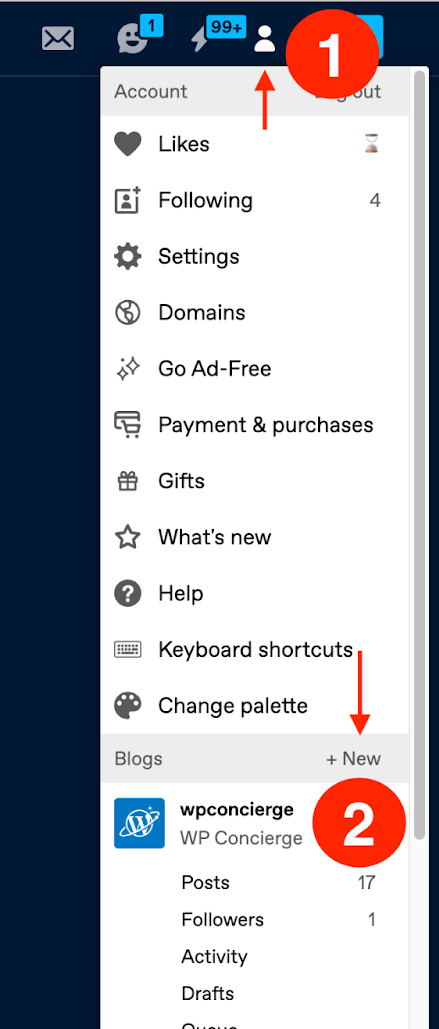
- Then select the account icon, and choose a
+ Newblog.
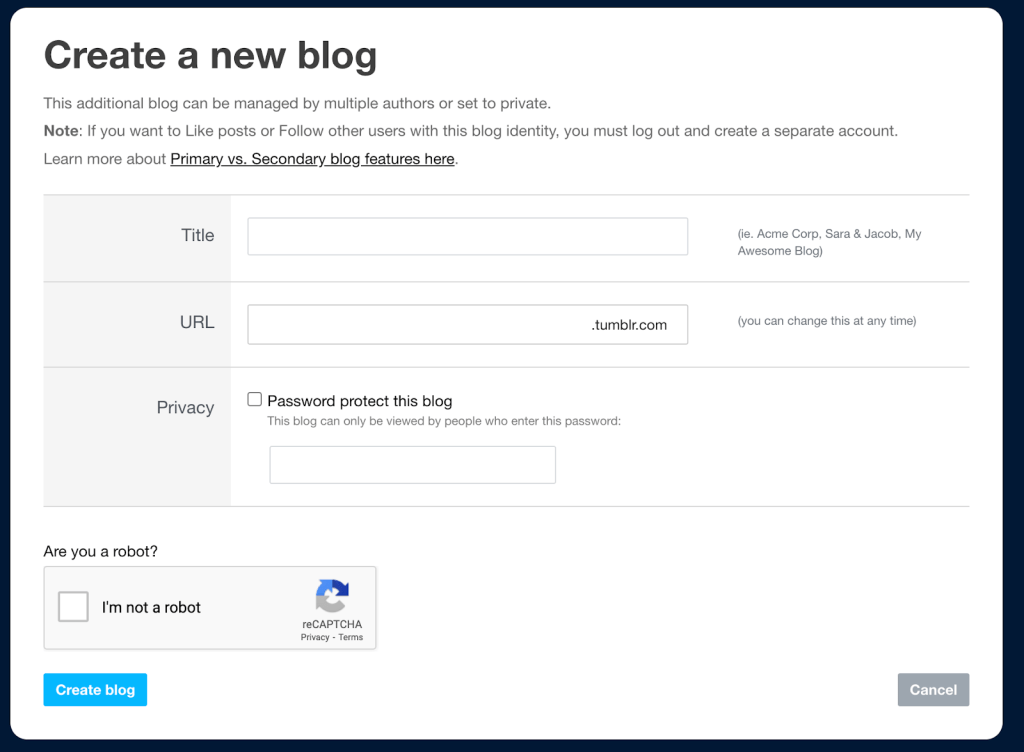
- Complete the next steps using the project name as the Title and the URL.
- Set a password for the blog while it’s in development and save this in 1Password.
- You will then be redirected to your page, but on the default, Bluespace Tumblr URL: tumblr.com/blog/URL
- The URL that you actually need, which we will be customizing is the Blog Network URL: URL.tumblr.com
Create a Repo
We will create a repo for this site, that our developers can work in.
- In Terminal (or your equivalent App), run
team51 github:create-repository - Enter the name of the repo that you would like to create.
- Select
projectas the type of repo. - Once this has been set up, you’ll have a repo in GH in our Special Projects account.
- ███████████████
Brief a developer on the project
Follow our standard process to brief a developer for the project.
 Automattic Special Projects