
As WPCOM Simple sites do not have staging sites, one must access a developer’s sandbox to test. This includes sites such as Akismet, Jetpack, and WPScan.
There is one golden rule:
Sandbox and production sites use the same database, so when viewing a site via Sandbox, do not make any content changes. Any content changes made will affect the production site.
Table of Contents:
- Connecting to a sandbox
- Using a browser extension like LiveHosts to view the sandbox
- Testing the site
- Disconnecting from the sandbox
Connecting to a sandbox
Every developer on a project will have their own sandbox. Before you can test it, though, you require two things:
- The sandbox IP address
- The owner of the sandbox needs to be online
To access a developer’s sandbox, you’ll need an IP address and internal and external URLs. Here are some examples:
Akismet
███████████████
███████████████
Akismet
███████████████
███████████████
Jetpack
███████████████
███████████████
Using a browser extension like LiveHosts to view the sandbox
Step 1: If you use Chrome, navigate to the extension library and search for LiveHosts, or click this link. Or, if you use Firefox, you can use this link.
There are most likely similar extensions available in other browsers.
Add the extension to your relative browser.
Step 2: Open LiveHosts. In both Chrome and Firefox, the puzzle-piece icon will open installed extensions. Select LiveHosts. Add the domain name and IP of the sandbox you’re trying to access and press Add.
███████████████
Testing the site
In the address bar, type in the site’s URL you’re trying to test and the sandbox will load.
If you’re using Google Chrome, you will likely get a “Your connection is not private” error. Click anywhere on the screen and type thisisunsafe, after a brief pause, the window will refresh, and the sandbox will load.
You can tell you’re in a sandbox by seeing the small notice on the bottom left of your screen.

Hint: If you get a “This site can’t be reached” error. It’s most likely that the developer’s sandbox is not on. Ping them and ask them to turn it on.

❖ You can now test the site. ❖
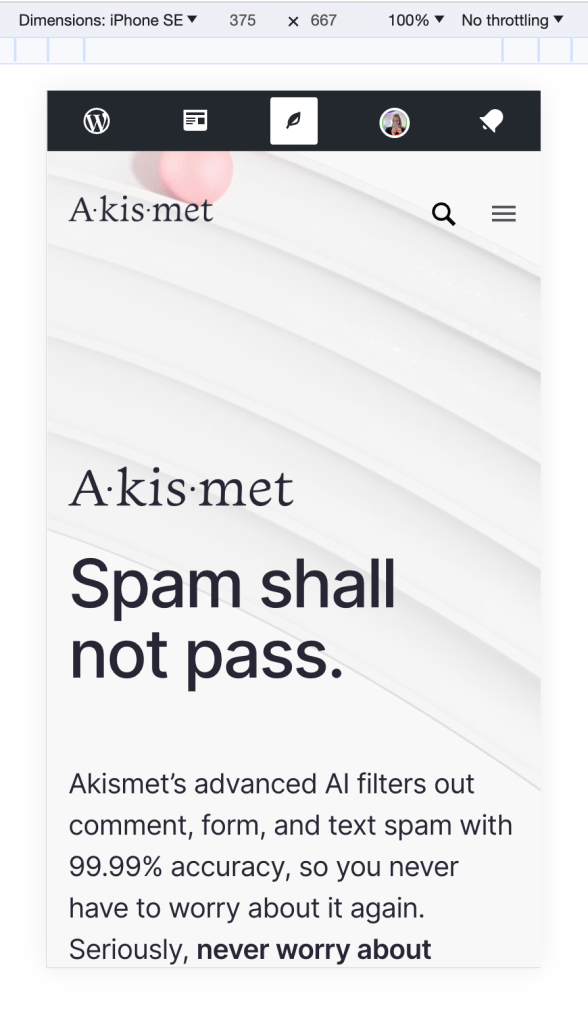
To test a responsive version, inspect the site on the desktop browser and select a device. This isn’t 100% accurate, but it mirrors mobile pretty closely.
Disconnecting from the sandbox
Once you have finished your testing, you must disconnect from the sandbox. In LiveHosts, click the x to remove the connection.
Voila! You have now tested a sandbox and disconnected from it to view the production site once again.
 Automattic Special Projects